Quick Installation Guide
1) Get Conda
Download and install Visual Studio Code
Download and install
Minicondafrom here: Installing Miniconda: clickDownload the installer, and find thew right version for your OS.
Once you’re done, continute to the next section.
2) Install Madina
After installing Miniconda, Run your terminal as administrator
(in Windows, run Command Prompt as administrator by searching for Command Prompt in the start menu, right click, and Run as administrator,, on MacOS, launch your terminal).
Run the following command to creates an environment called madina_env and install some packages that madina depends on including geopandas
conda create -n madina_env -c conda-forge --strict-channel-priority geopandas
Avctivate the newly created madina_env environment by running this command:
conda activate madina_env
Run the next command to install madina from a test repository. Keep in mind that madina is work-in-progress and we will be frequently rolling out updates.
pip install -i https://test.pypi.org/simple/ --extra-index-url https://pypi.org/simple madina
If you’re using a shared computer (Like the DUSP computer labs), you might also need to run the following command
ipython kernel install --name madina_env --user
In case you needed to update to a newer version, run the following command:
pip install -i https://test.pypi.org/simple/ --extra-index-url https://pypi.org/simple madina --upgrade
3) Run an example
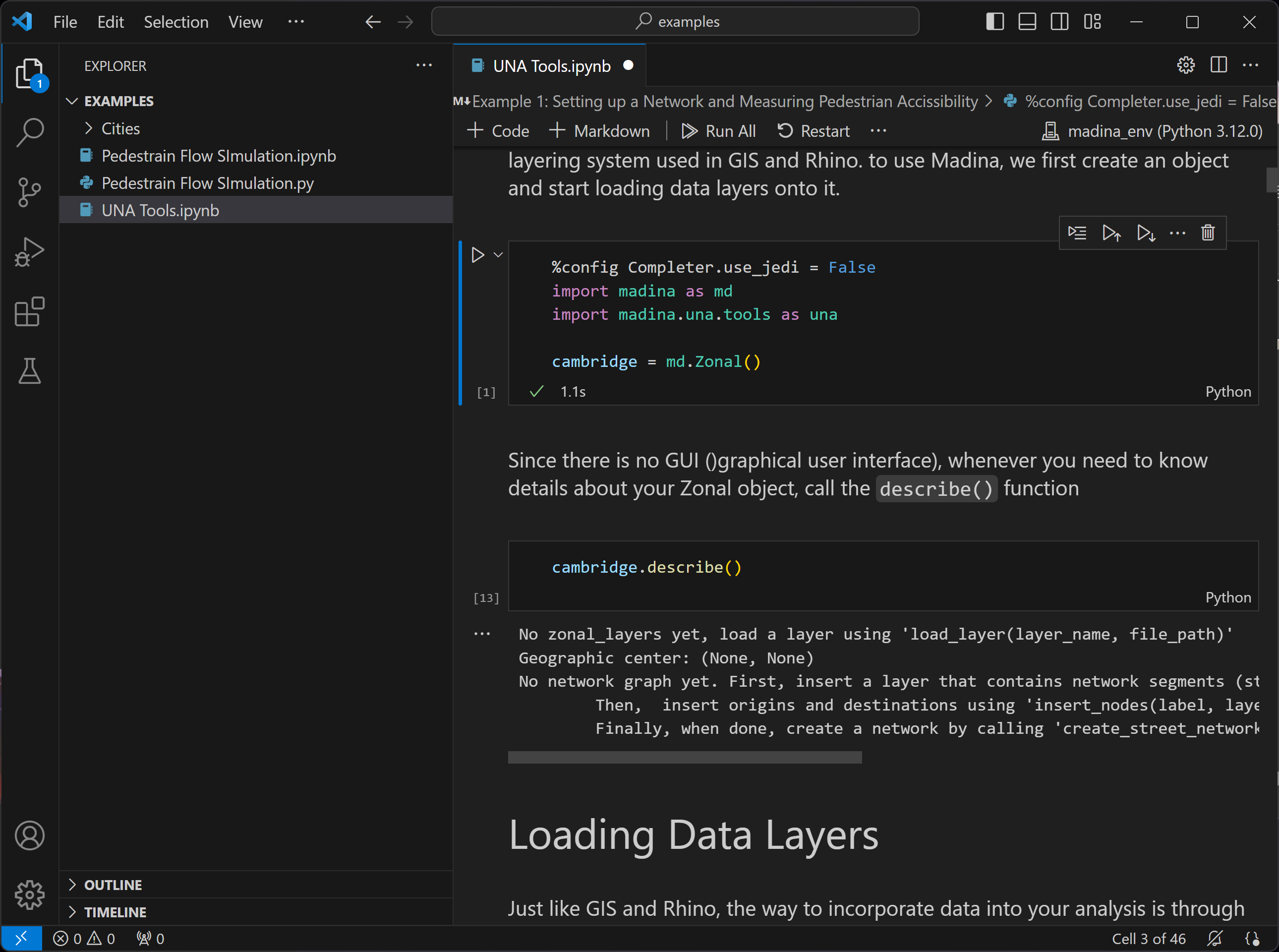
If you’re familiar with programming in python, feel free to choose your favorate text editor. The folloing instructions are useful to familiarize yourself with running madina for the first time.
Download the example notebooks folder, and unzip it.
In VS code, Click FIle > Open Folder and navigate to the unzipped “notebooks”
Open the Explorer side panel and open the first notebook. If prompted to install extensions for python and jupyter, approve and wait for extension installation (might need to restart VScode after installing extensions)
Make sure to set the environment to “madina_env” that you created during package installation. you can choose/change the environment by clicking Select Kernel version number in the buttom right corner of VS Code
Open the example notebooks and follow along step by step by running each cell
if you want to take a quick look, these python notebooks are available on this website for viewing, Check the Notebooks section in the side panel.
Step-by-step visual instructions
1) Install Conda and use it to Install Madina
Go to the download link for Miniconda, and click
Download the installer

Pick the appropriate installer for your operarion system

Install using default settings

Run your OS’s terminal as administration. on windows, run Powershell as administrator

Note
In case you faced errors with the terminal/Powershell, try running the same commands using “Conda Prompt” that installs with Miniconda.
copy and paste this command into powershell and hit enter to create a python environment called
madina_envwithgeopandasinstalled.
conda create -n madina_env -c conda-forge --strict-channel-priority geopandas

When prompted, type
yto approve installinggeopandasand its dependencies

activate the newly created
madina_envby running this command:
conda activate madina_env

Install madina through pip by running this command (copy and paste into Powershell/terminal):
pip install -i https://test.pypi.org/simple/ --extra-index-url https://pypi.org/simple madina
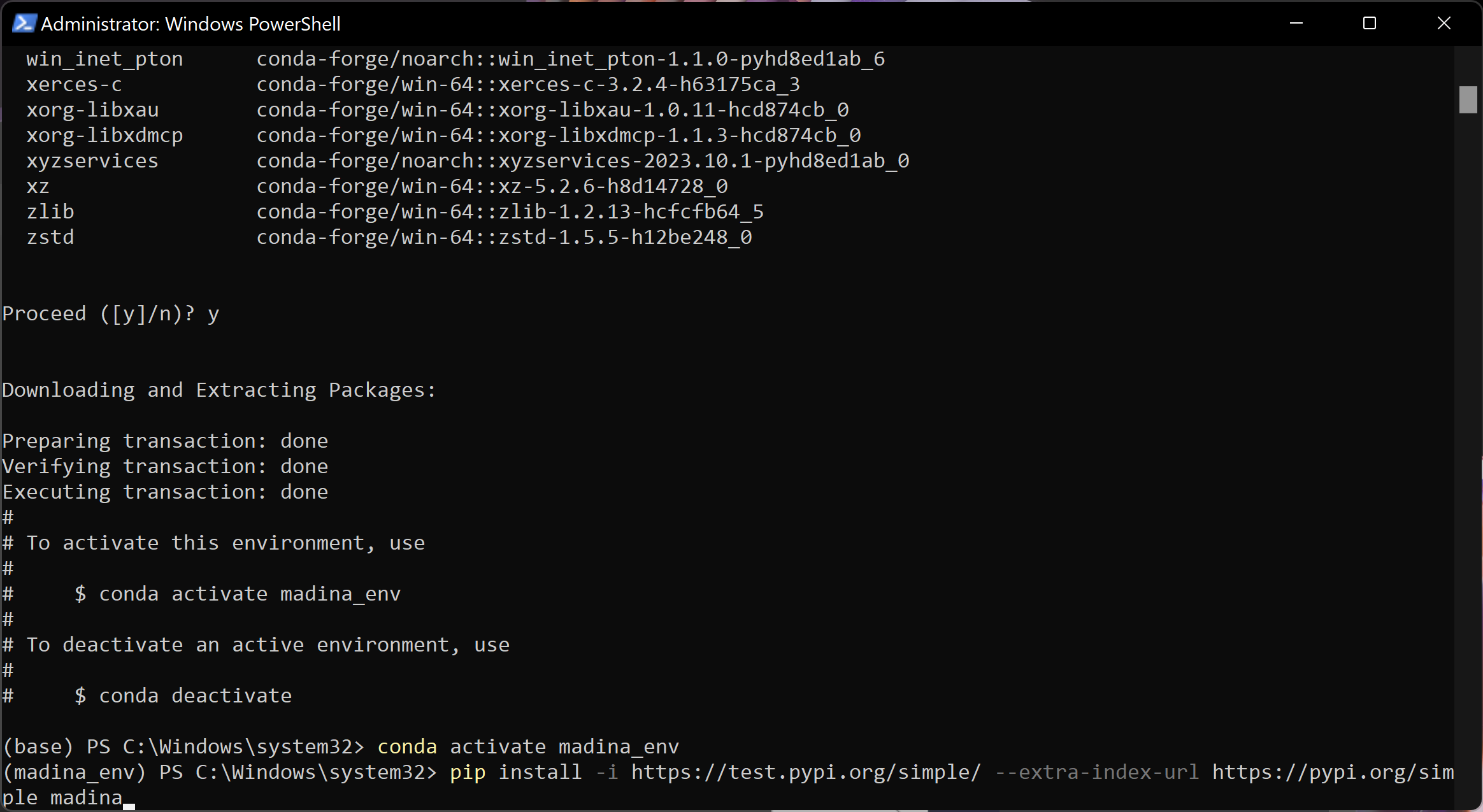
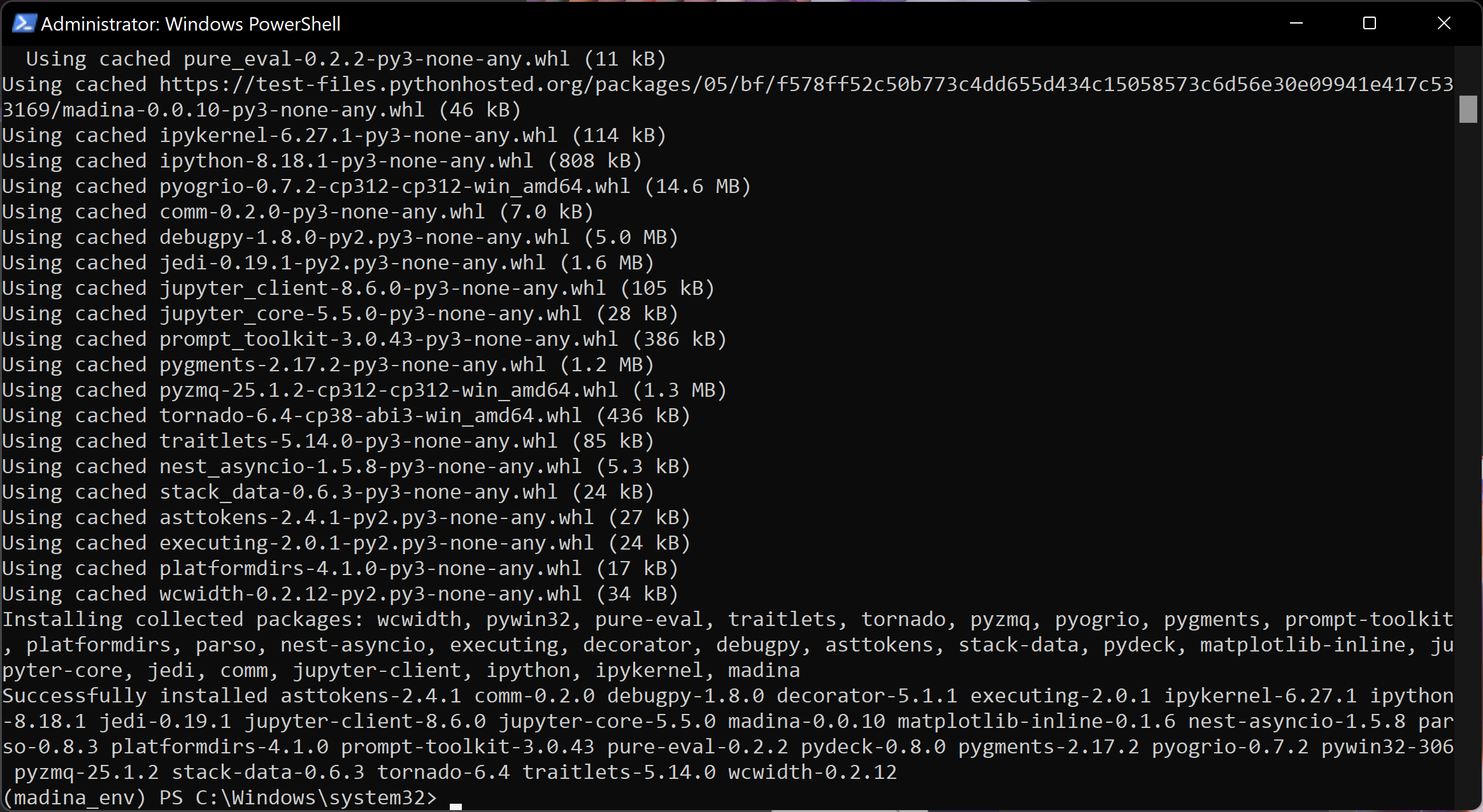
You should get a message indicating successful installation of Madina and its dependencies:
2) Install VScode and Run Example
Download The notebook folder, and unzip it.
Download Visual Studio Code, a simple and powerful code editor.

Run the installer and approve all default settings, then run VScode

In VSCode, go to File > Open Folder

Navigate to the
notebooksfolder you just downloaded and unzipped, and select open folder.

Navigate to the
Explorerside panels. notice that example notebooks have the extension.ipynb. Open an example notebooks.

In the top-right corner of the notebook, click on the
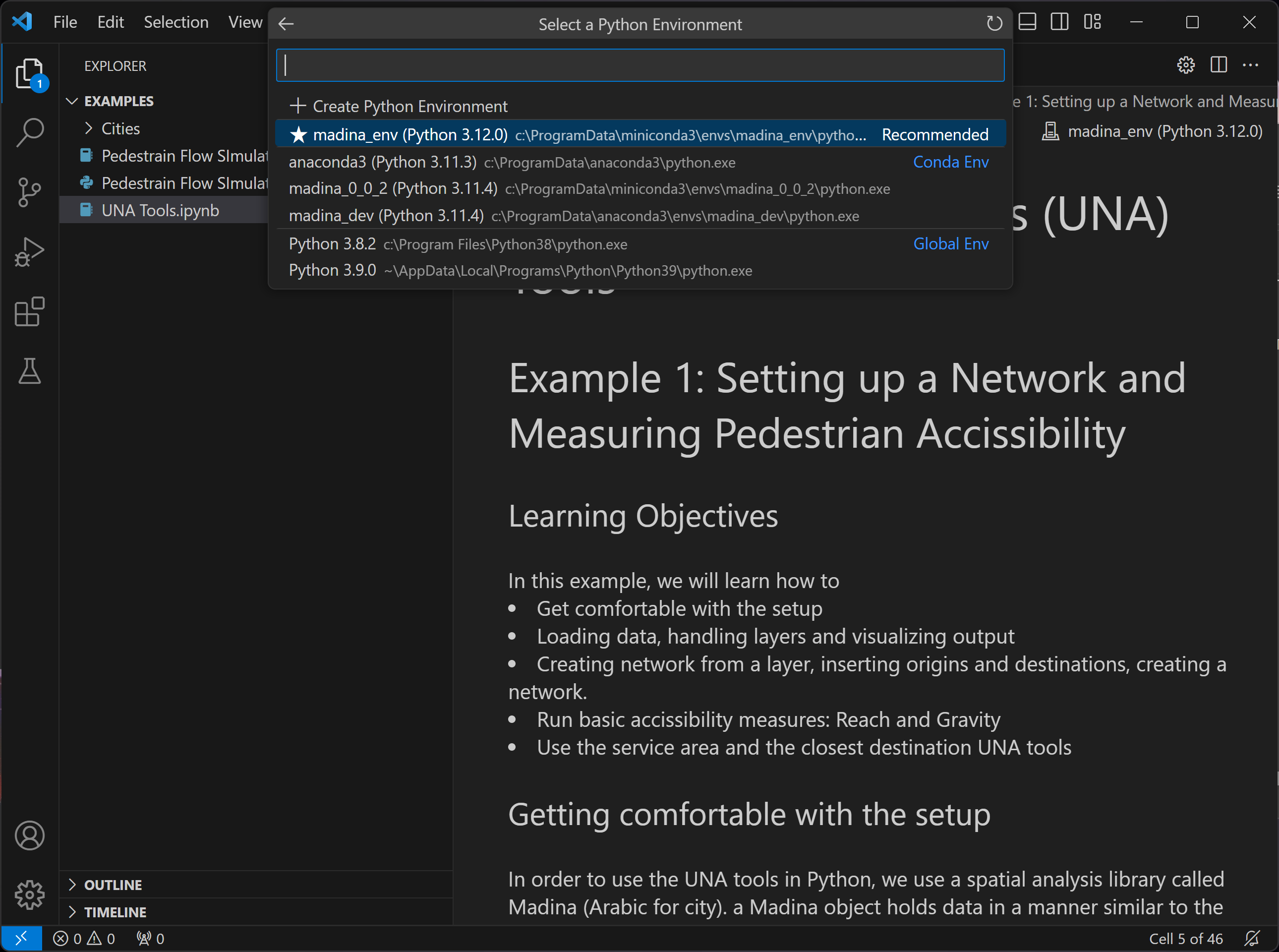
Select Kerneloption, it might be already showing a python version, we need to make sure we pick the new python environment we just created in conda. CLick onSelect Kernelor the shown python version, from the dropdown list, choosePython Environments
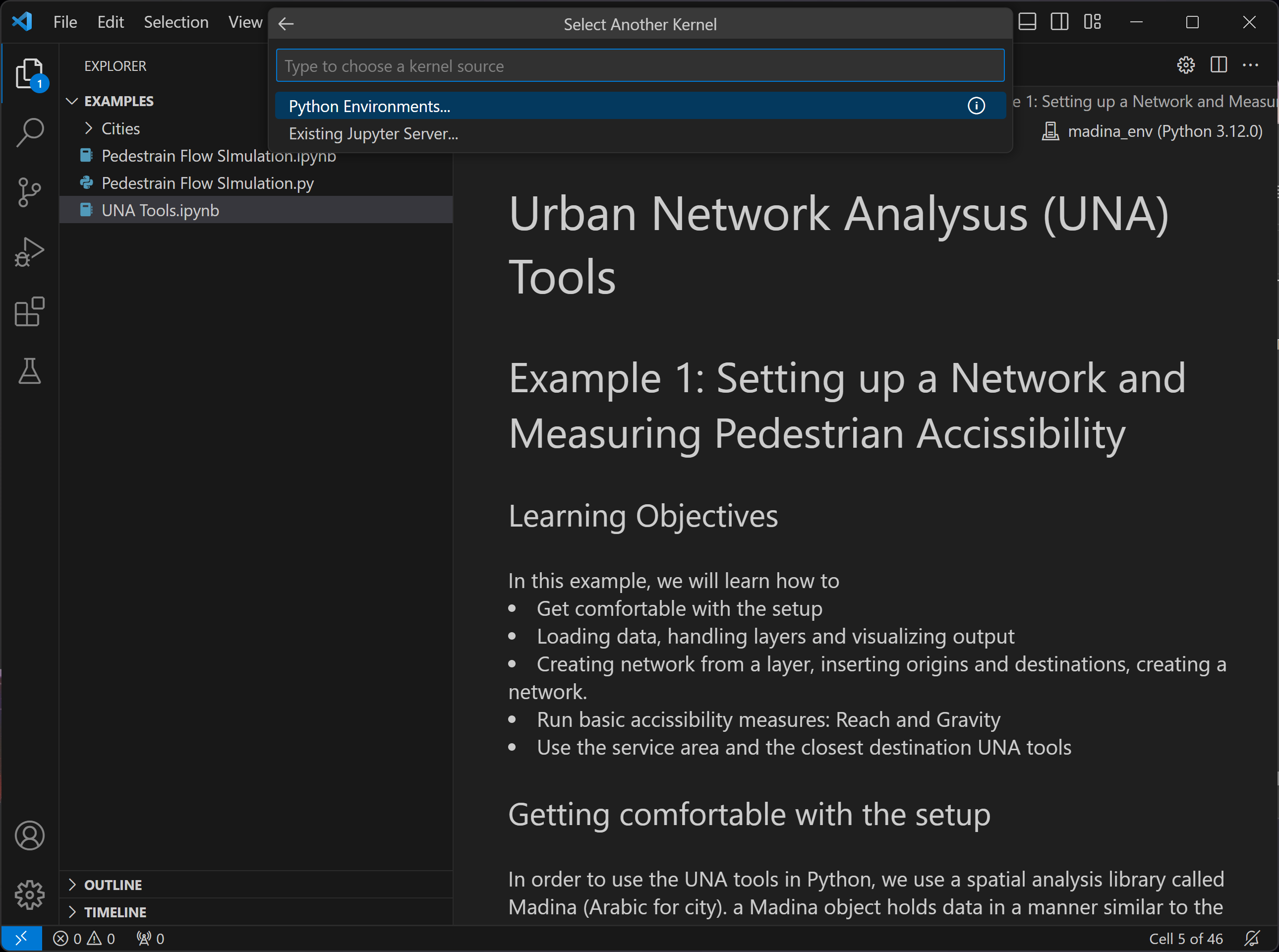
Depending on how many python installations you have on your machine, you’ll see different options. Choose the
madina_envfrom the list. If VS code prompts you to install a kernel/extension, approve then Restart VS Code
In the Top-left corner of each code cell, there is a Run button. CLick Run on the first cell and make sure you get a green check box in the bottum left corner